STEP 01
Choose your card
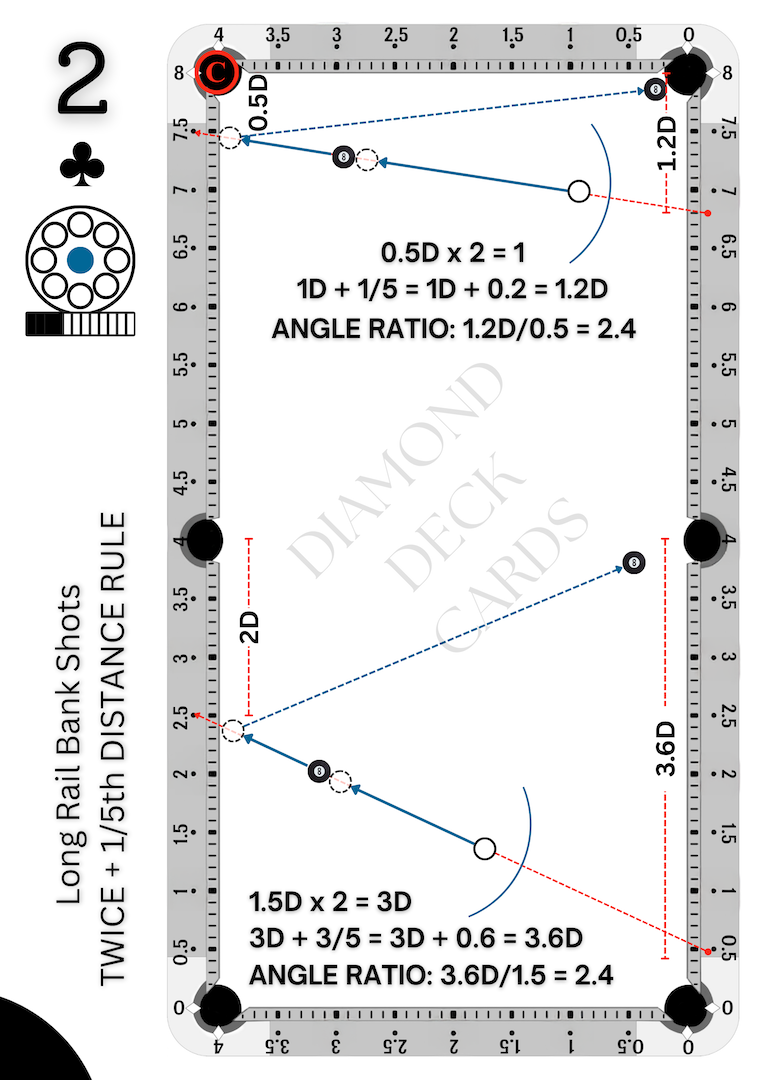
Start with a Diamond Deck exercise. This is the authentic Black 2♣ card from the practice app.
DIAMOND DECK CARDS · PROJECTION
Practice smarter with Diamond Deck. Access pool table projection software free for up to 2 hours every day. Learn with digital practice cards, explore the training systems, and bring your exercises directly onto your pool table.
Free account required. Compatible projector, computer and pool table required. Hardware sold separately.
View Setup Guide ↓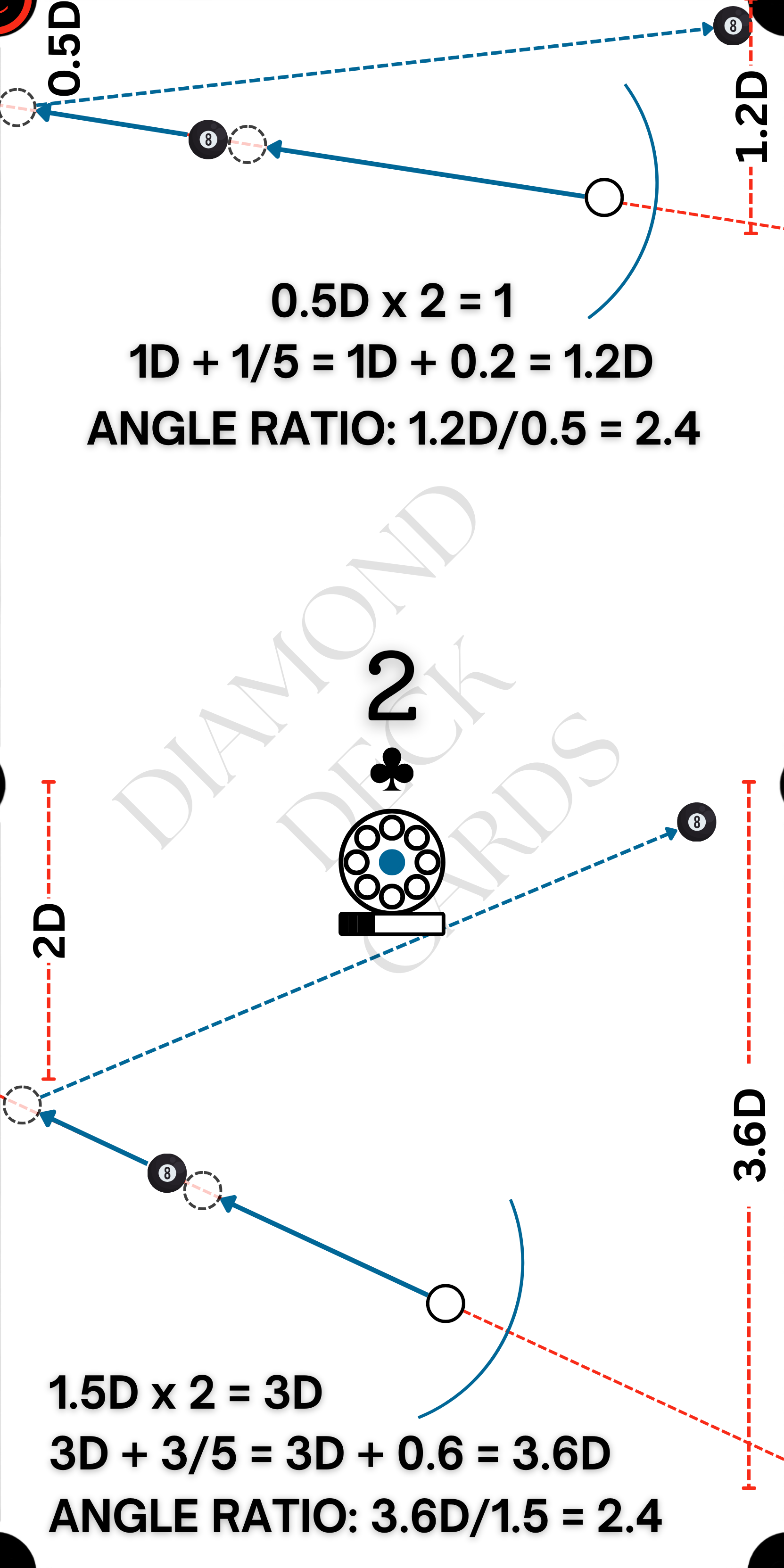
FROM CHOOSING TO DOING
One exercise. Three steps to a focused session.
STEP 01
Start with a Diamond Deck exercise. This is the authentic Black 2♣ card from the practice app.
STEP 02
On your computer, sign in, open Projector Hub and register your table. Connect the projector and calibrate the image.
STEP 03
Choose the exercise in your running projection session, align the layout, place the balls and practice. Below is the original projection artwork, not a photo of a real table.
SEE IT IN ACTION
The interactive demo runs inside the actual app. Sign in on your computer to open it; a compatible setup is needed to see it on your pool table.
Open Interactive Demo ↗A verified physical-table demonstration is not available here yet. This space is reserved for authentic footage of the setup and practice workflow.
The artwork above is a product asset, not a simulated installation photo.
THE SOFTWARE IS FREE
Start with up to 2 hours of free practice every day.
No projection software purchase is required within the daily allowance. Bring a compatible projector and computer, calibrate your table and build a repeatable practice routine.
Free software does not include a projector, computer, mounting equipment or pool table. Physical cards and printed books are optional and sold separately.
BROWSER-BASED PRACTICE
Open the practice app on a phone, tablet or computer and sign in with a free account. Digital card access is currently free; projection has its own daily allowance.
Desktop Chrome checked. Individual mobile browsers, OS versions and projector combinations still need device testing; compatibility is not guaranteed for every setup.
Open Practice App ↗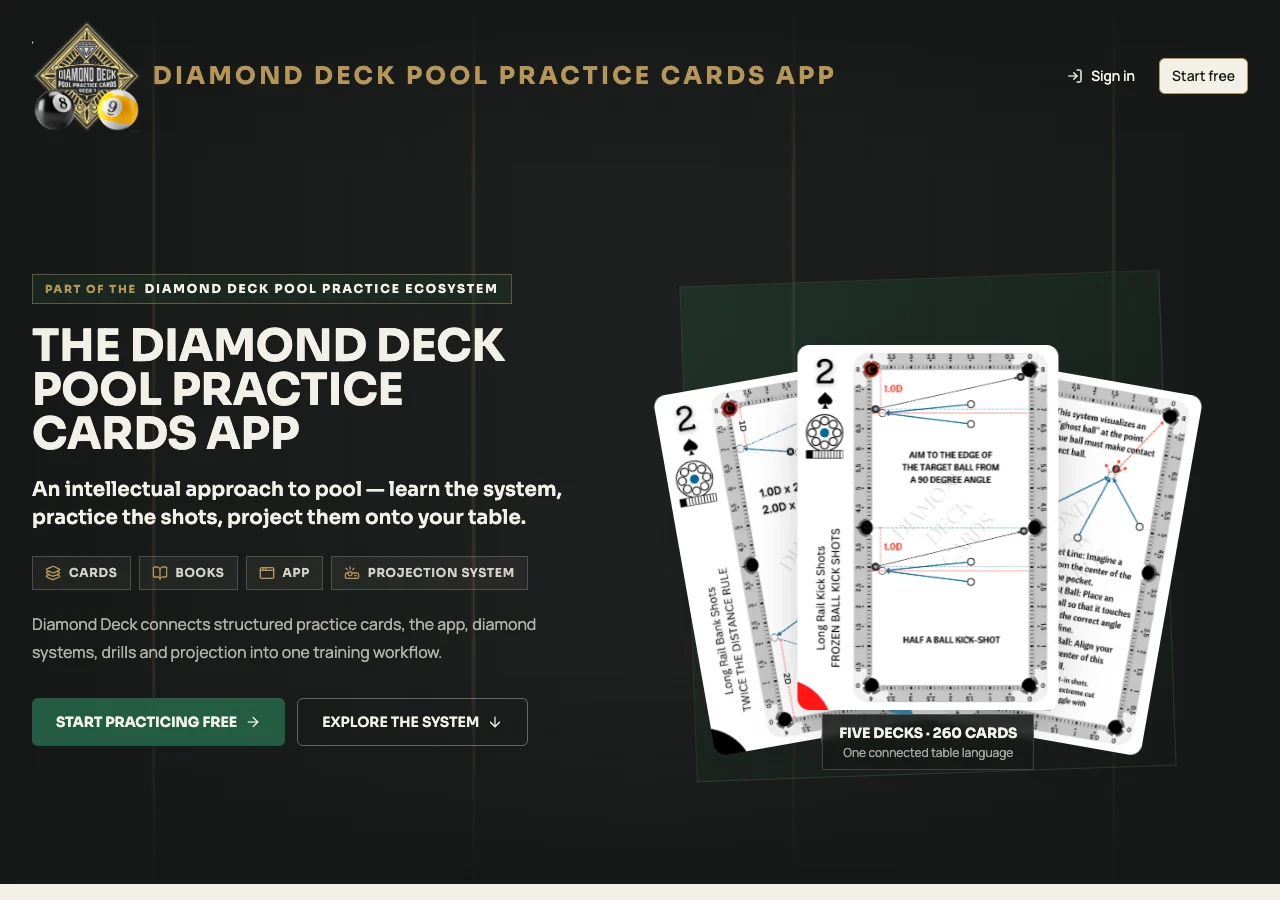
FROM BOOK TO POOL TABLE
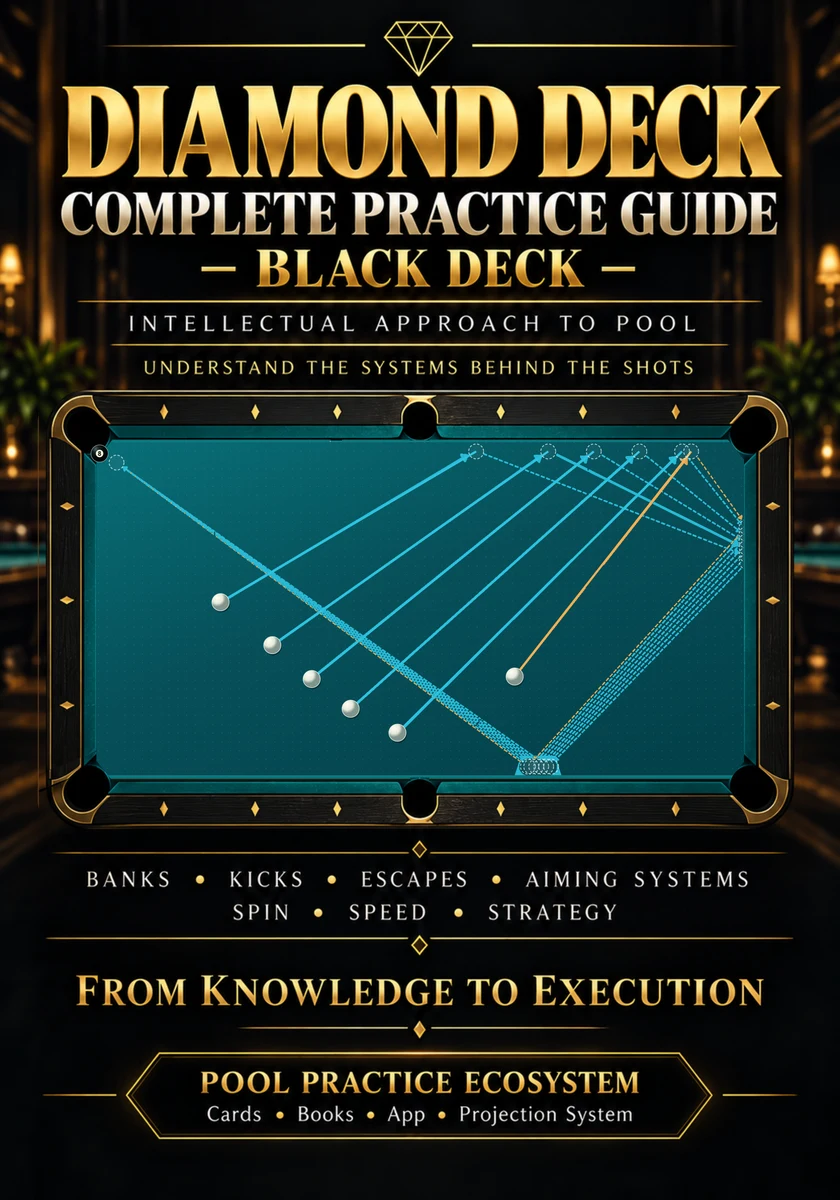
The Complete Practice Guide adds shot explanations, aiming systems, cue-ball positioning, spin and speed recommendations and practice instructions. Card QR codes connect printed material with digital exercises.
QR card launch and table delivery exist in the app. Live hardware pairing has not been verified for this landing-page release. A phone sends the selection; the computer and projector display it.
GET YOUR TABLE READY
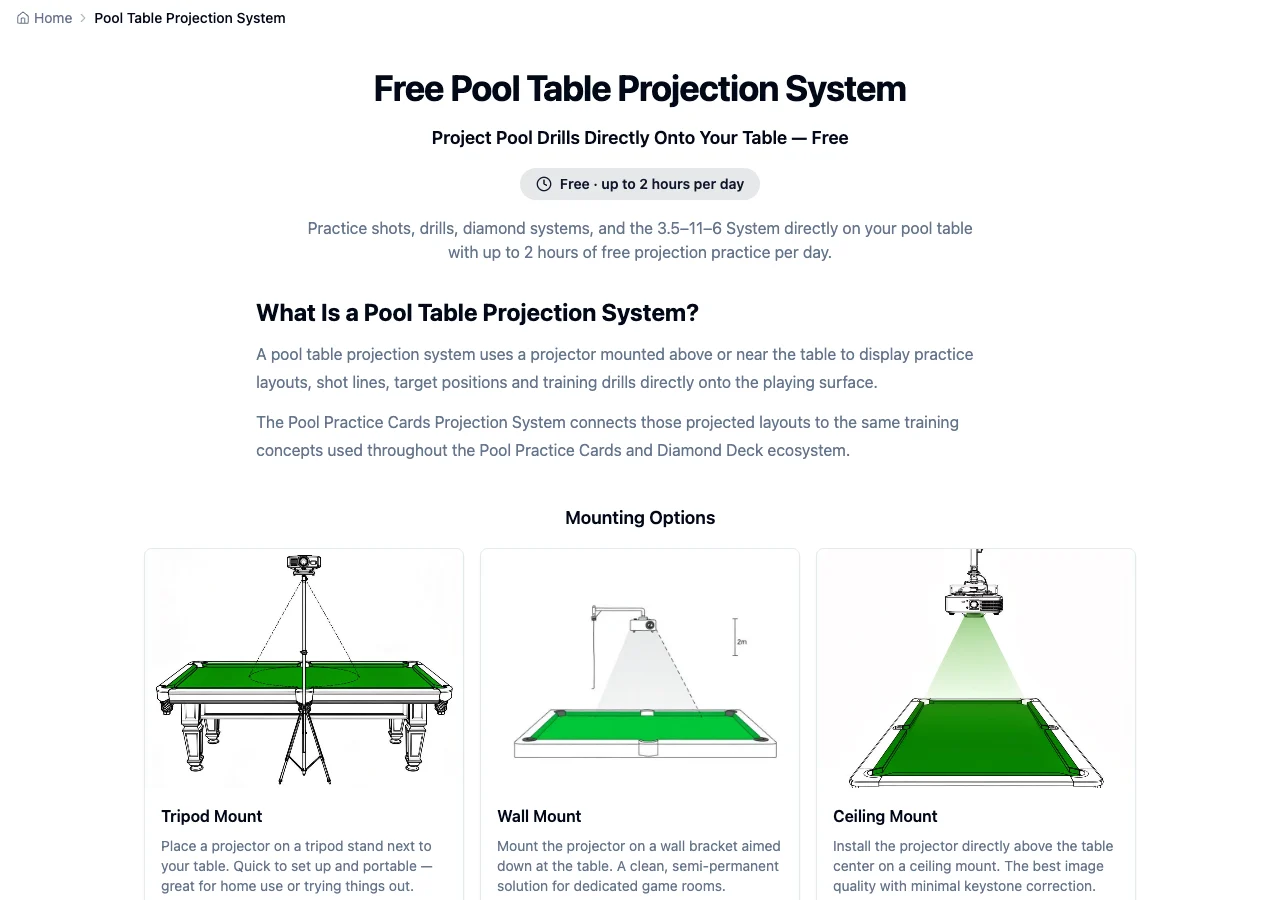
A projector your computer can display through, positioned to cover the playing surface.
Use a compatible laptop or desktop to run the browser-based Projection System. A phone is not the projection computer.
Plan a stable, suitable projector position. Check the image on your own table before committing to hardware.
Create a free account, register your table in Projector Hub, then align position, scale, rotation and keystone.
OPTIONAL TOOLS. CONNECTED PRACTICE.

Five decks to choose, set up and repeat your training. Physical cards are optional paid products.
Shop on
Study with the Complete Practice Guide. Record your practice with the companion Practice Book. Both books are sold separately in paperback and Kindle eBook editions on Amazon.
BEFORE YOU START
Yes. Diamond Deck provides up to 2 hours of free projection software access every day. No projection software purchase is required within that allowance. A free Pool Practice Cards account and your own compatible hardware are required.
Up to 2 hours every day. This is a daily allowance, not unlimited access. The app tracks projection time; check the Projector Hub for your table’s remaining allowance.
You need a compatible projector, but you can use equipment you already own if it works with your computer and table setup. A projector, computer, mounting equipment and pool table are not included.
Yes. Diamond Deck Pool Practice Cards is available as an Android app through Google Play, or you can use the web app at https://poolpracticecards.com from an iPhone, Android phone, tablet, Mac or Windows computer with an internet connection and a supported modern browser. Both access the same Pool Practice Cards system and user account, so you can continue your training across devices. For table projection, use a compatible computer connected to your projector.
No download is required. Just visit https://poolpracticecards.com in your browser, sign in or create your free account, and start practicing. Android users can also install the Diamond Deck Pool Practice Cards app from Google Play. Both options use the same account and connected practice system. The Pool Table Projection System is browser-based and requires a compatible computer and projector.
No. You can practice with digital cards using the free Pool Practice Cards app without buying physical decks. The optional physical Diamond Deck Cards are a convenient hands-on way to select drills, challenge your thinking, memorize shot patterns and build a focused practice routine. Physical decks are sold separately.
No. Printed Practice Guides and Practice Books are optional purchases, with available editions sold on Amazon. They provide structured learning and practice materials. Free PDF editions of selected Practice Books are also available to download from our Free eBooks library at https://diamonddeckcards.com/en/free-billiards-books/.
Each card page in the Diamond Deck Practice Guide and Practice Book includes a QR code linking to the corresponding digital exercise. Scan it with your phone to open the exact card, review the shot while reading its explanation, and choose to practice on your phone or send the exercise to your Pool Table Projection System. This makes it easy to move from a book's bank shot, kick shot or other drill directly to table practice without searching for the card again. Projection requires signing in, a registered table and an active computer-based projection session under the same account. Live physical-table pairing has not yet been verified for this landing page.
A phone alone cannot project onto a table. It can send a card to an existing projection session. Keep a compatible computer and projector connected, the table registered and the projection session running.
Position the projector, connect it to your computer, register your table in Projector Hub and use the calibration controls for position, scale, rotation and keystone. Align the display with your table before practicing. The linked setup guide explains mounting and getting started.
MAKE THE NEXT SESSION COUNT
Get up to two hours of free pool table projection practice every day.
Free account, compatible projector, computer, pool table and calibration required. Hardware, physical cards and printed books are not included.
